Plugging in hardware lets the manufacturer install software on your PC. Stopping it on Windows 11 Home
Windows matches what you plug in to a manufacturer's app and installs it. No prompt. LG used it for McAfee ads, and Alienware has been caught doing the same.
Gamers Nexus put out a video, DO NOT BUY: LG’s Spyware TVs, Monitors, and Wiretapping Concerns, and that is where this started for me. Plug in certain LG UltraGear monitors and the “LG Monitor App Installer” turns up on your machine, and its main job is to nag you into a McAfee trial.
An advert is annoying. What bothers me is what the advert proves. Windows will match the hardware you plug in against a manufacturer’s app, fetch that app from the Microsoft Store and install it, with no prompt, and the manufacturer decides what is in it. LG chose an advert. They could have chosen anything else they are willing to ship, and so can the next firm. That is not a thought experiment: Alienware monitor apps have been caught arriving the same way, and Asus has been named too.
The McAfee pop-up is the tame part. In the Gamers Nexus video, the LG installer’s own documentation grants it full access to all system resources, and lists collection of your location, hardware, online activity, account logins and contact information. So the software that let itself onto your machine because you plugged in a screen is a data-harvesting app, not a driver. That is a lot to hand a monitor, and nobody was asked.
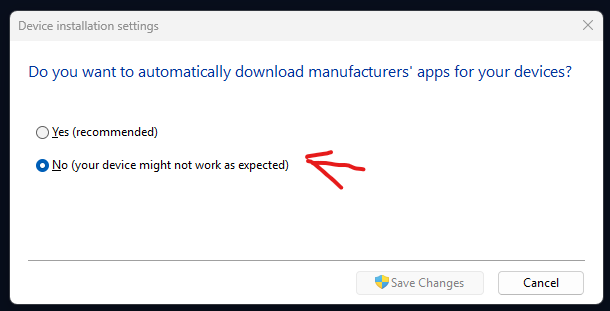
Microsoft’s own name for the setting is “Prevent automatic download of applications associated with device metadata”. It is not enabled by default. The consent lives in a dialog asking “Do you want to automatically download manufacturers’ apps for your devices?”, three clicks into Control Panel, answered Yes on your behalf before you owned the device. I would guess almost nobody has been in there, because almost nobody knows it is there. Turning it off does not depend on trusting my read of LG. It shuts the door for whoever tries it next.
Most guides point you at the Group Policy Editor, which does not exist on Windows 11 Home. Here are two ways that do work on Home.
What Windows is actually doing
When you connect a device, Windows looks up that device’s metadata and can download the applications the manufacturer has associated with it. That is how the LG installer lands without asking. Turning it off stops those app downloads. It does not touch your basic hardware drivers, so the monitor carries on working normally.
The quick way: registry
Open Command Prompt as administrator (search for cmd, right-click, Run as administrator) and run:
reg add "HKLM\SOFTWARE\Microsoft\Windows\CurrentVersion\Device Metadata" /v PreventDeviceMetadataFromNetwork /t REG_DWORD /d 1 /fThat sets PreventDeviceMetadataFromNetwork to 1. Reboot to be safe.
If you would rather do it by hand in regedit, navigate to:
HKEY_LOCAL_MACHINE\SOFTWARE\Microsoft\Windows\CurrentVersion\Device MetadataCreate or edit a DWORD called PreventDeviceMetadataFromNetwork and set it to 1. Set correctly, it looks like this.

The manual way: Control Panel
Same result, no registry editing. The toggle writes to that exact value.
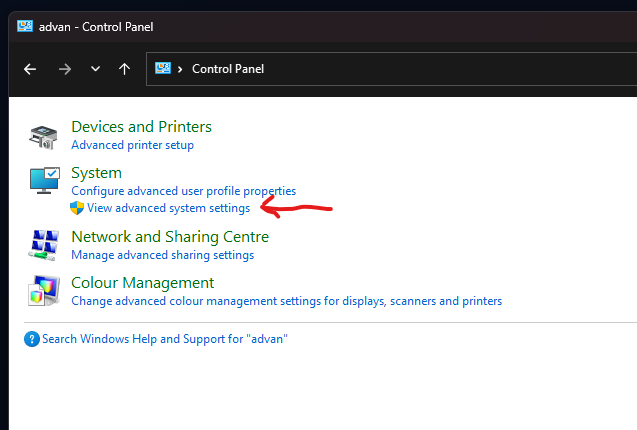
1. Open Control Panel and click View advanced system settings under System.
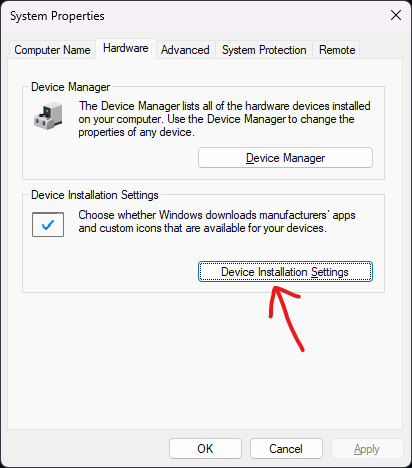
2. In System Properties, go to the Hardware tab and click Device Installation Settings.
3. Choose No, then click Save Changes. This dialog is the consent question, and you are answering it properly for the first time.
Reboot afterwards and Windows stops pulling manufacturer apps when you connect a device.
Worth knowing
This only stops the automatic downloads. If the LG installer already made it onto the machine, uninstall it separately through Settings.
The No option is labelled “your device might not work as expected”, which reads as a threat until you remember what is on the other side of it: a McAfee advert, or worse. A monitor is a monitor. Nothing has broken here since I turned it off.